

Magic Import Operation Guide
Magic Import Operation Guide
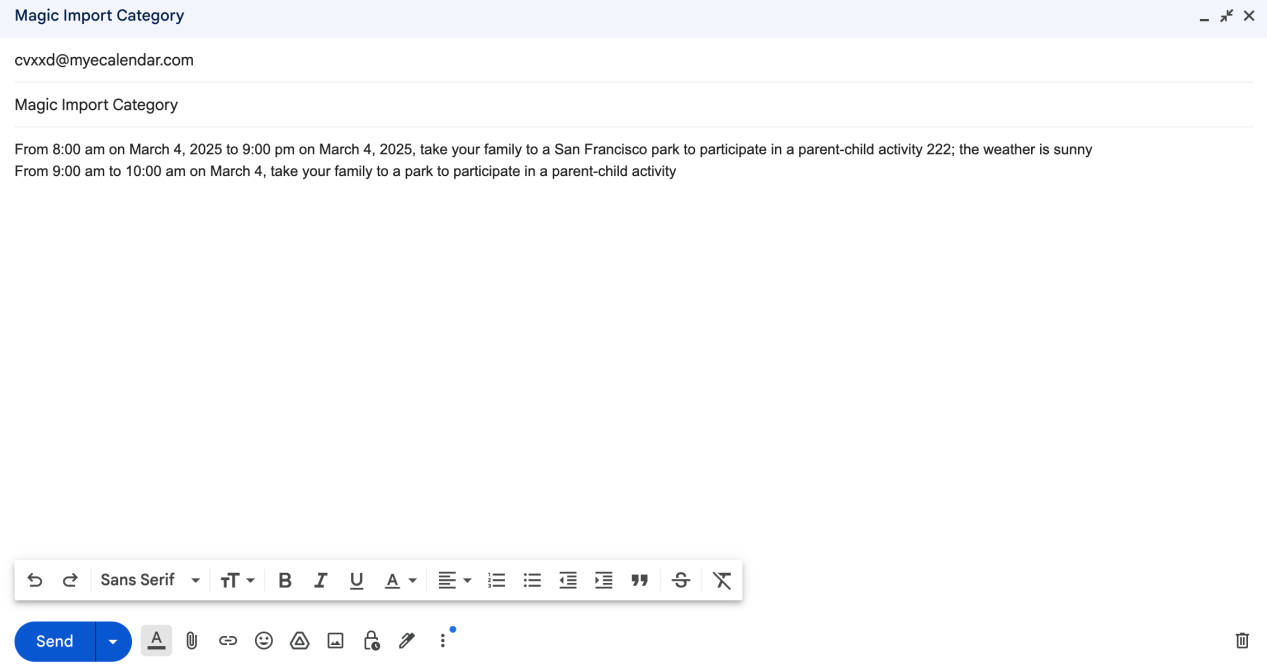
1. Email Text Import Events
You can import events directly from email text. Here's how:
Step Instructions:
- Recipient: Fill in the virtual device mailbox
- Subject: Enter the existing category name of the virtual device (defaults to 'Uncategorized' if not specified)
- Body: Enter the content of the template email
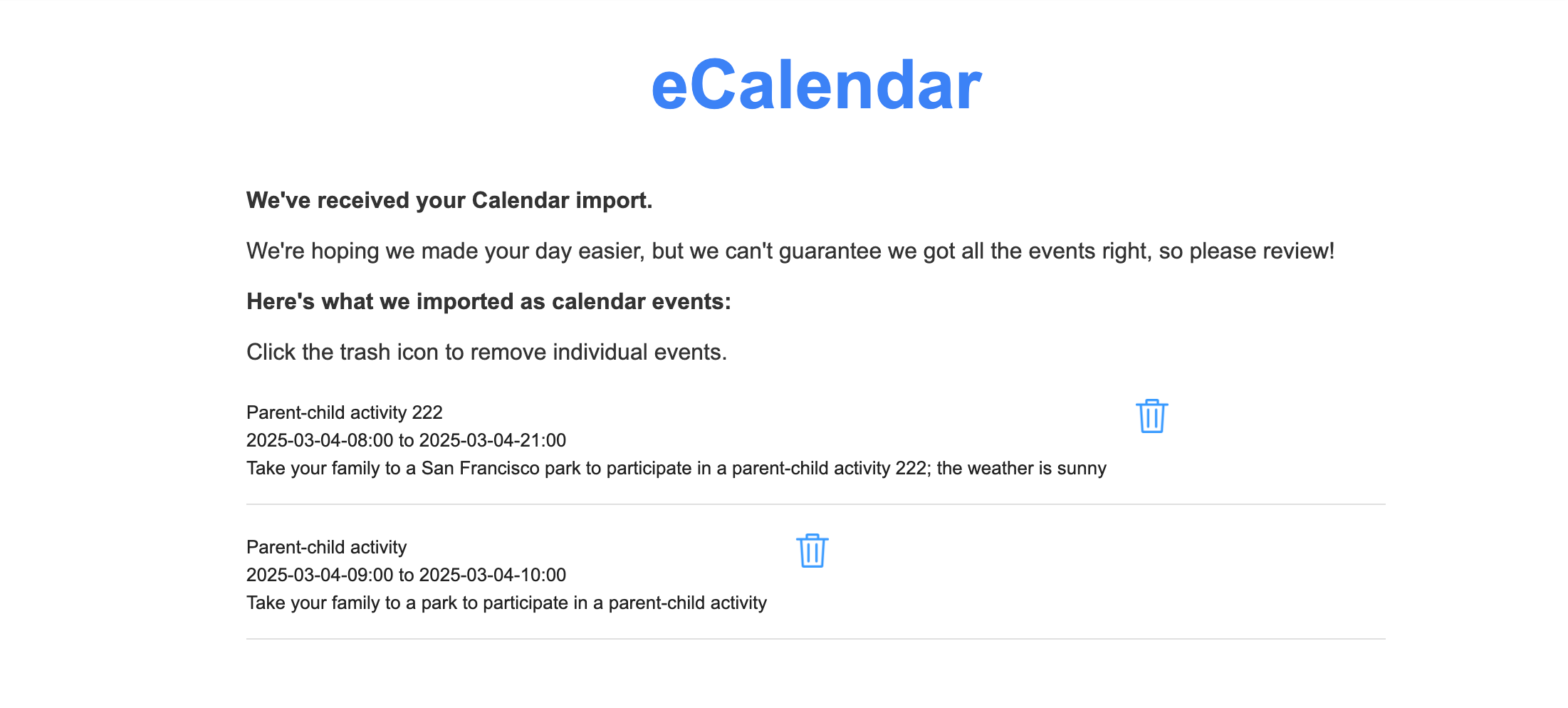
Send Successful Result:
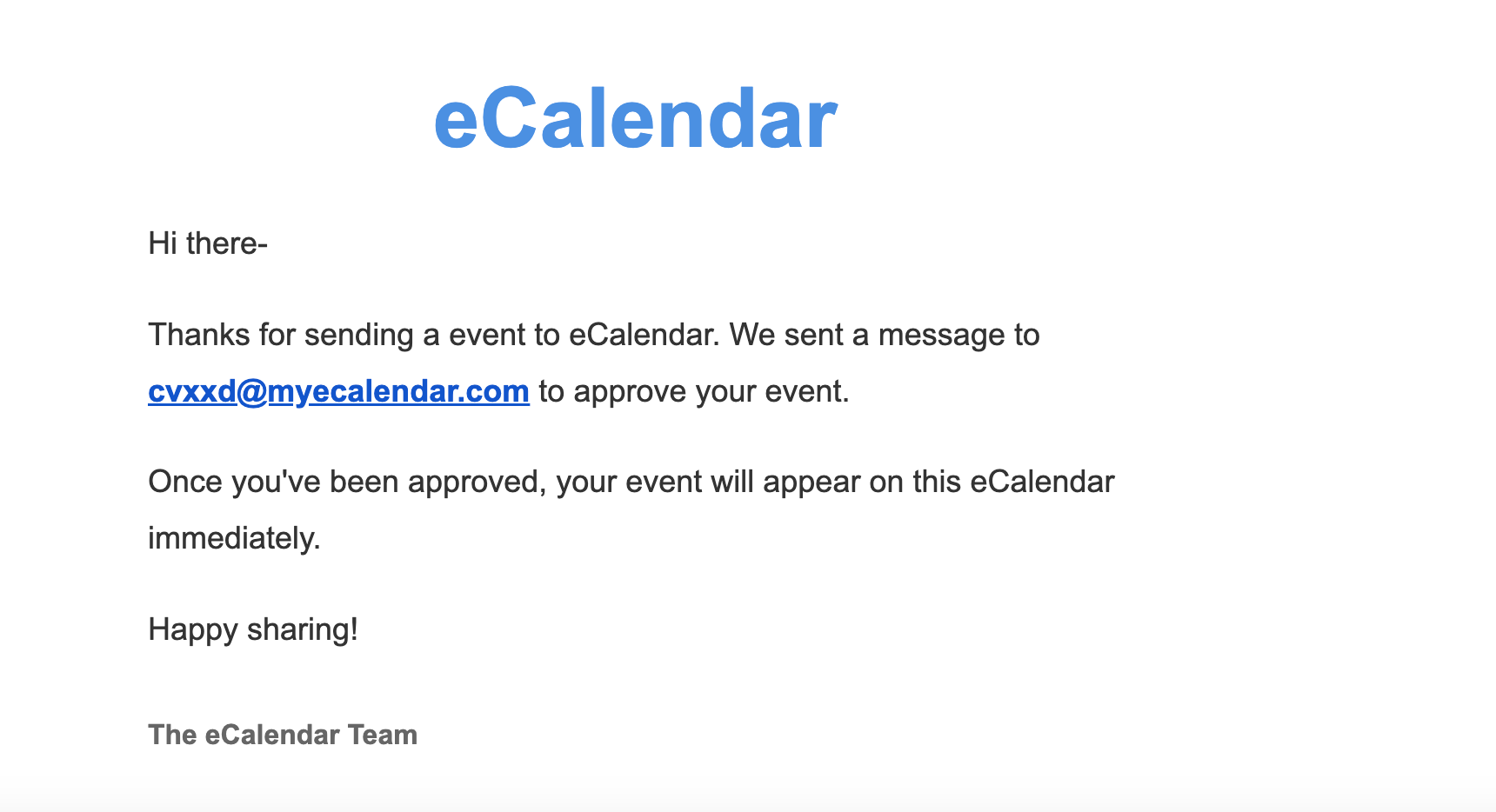
You will receive an email confirmation when events are successfully added.
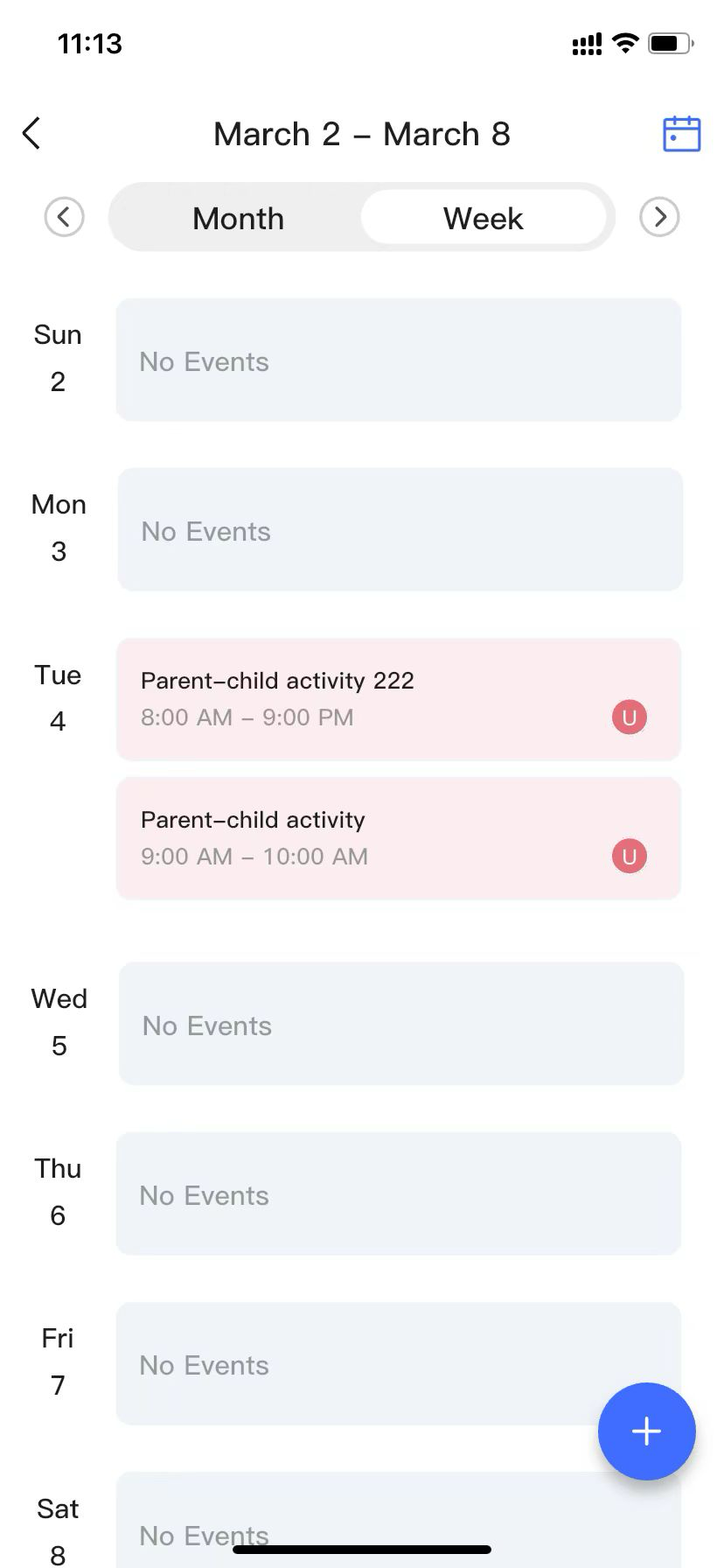
The added events will be reflected in the APP.
2. Word Import Events
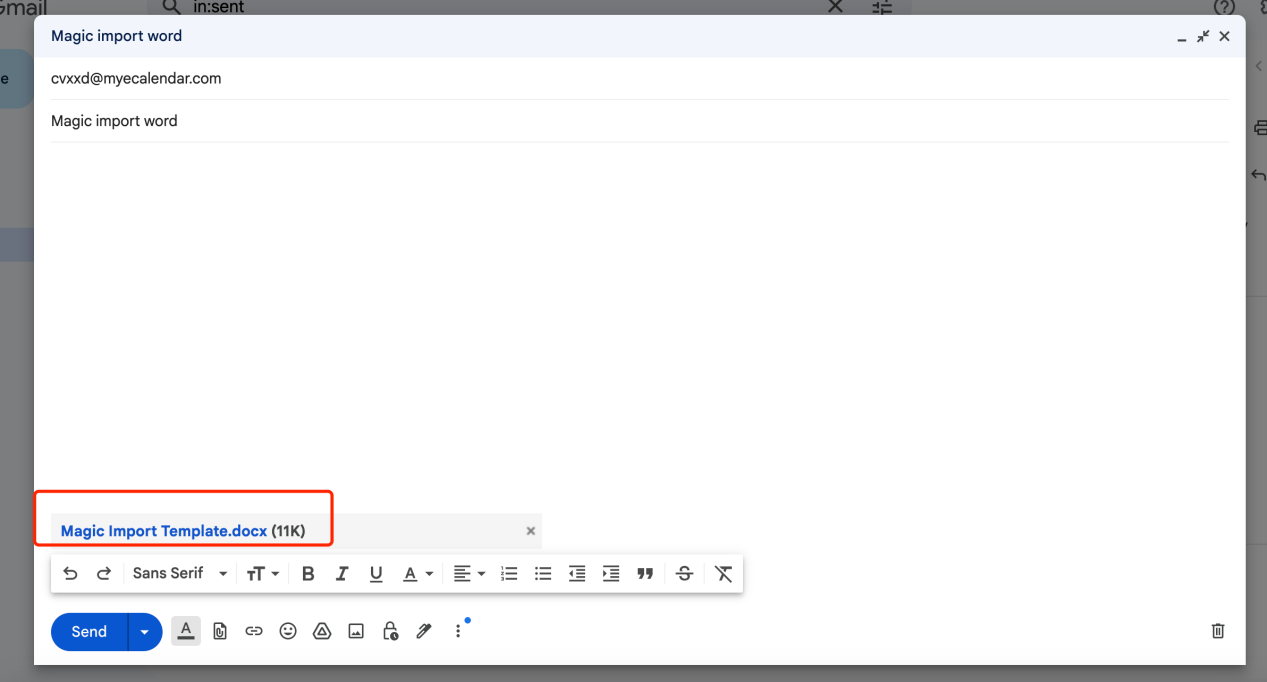
You can import events from Word documents. Here's how:
Step Instructions:
- Recipient: Fill in the virtual device mailbox
- Subject: Enter the existing category name of the virtual device (defaults to 'Uncategorized' if not specified)
- Attachment: Select the saved Word document
Send Successful Result:
You will receive an email confirmation when events are successfully added.
The added events will be reflected in the APP.
3. PDF Import Events
You can import events from PDF documents. Here's how:
Step Instructions:
- Recipient: Fill in the virtual device mailbox
- Subject: Enter the existing category name of the virtual device (defaults to 'Uncategorized' if not specified)
- Attachment: Select the saved PDF document
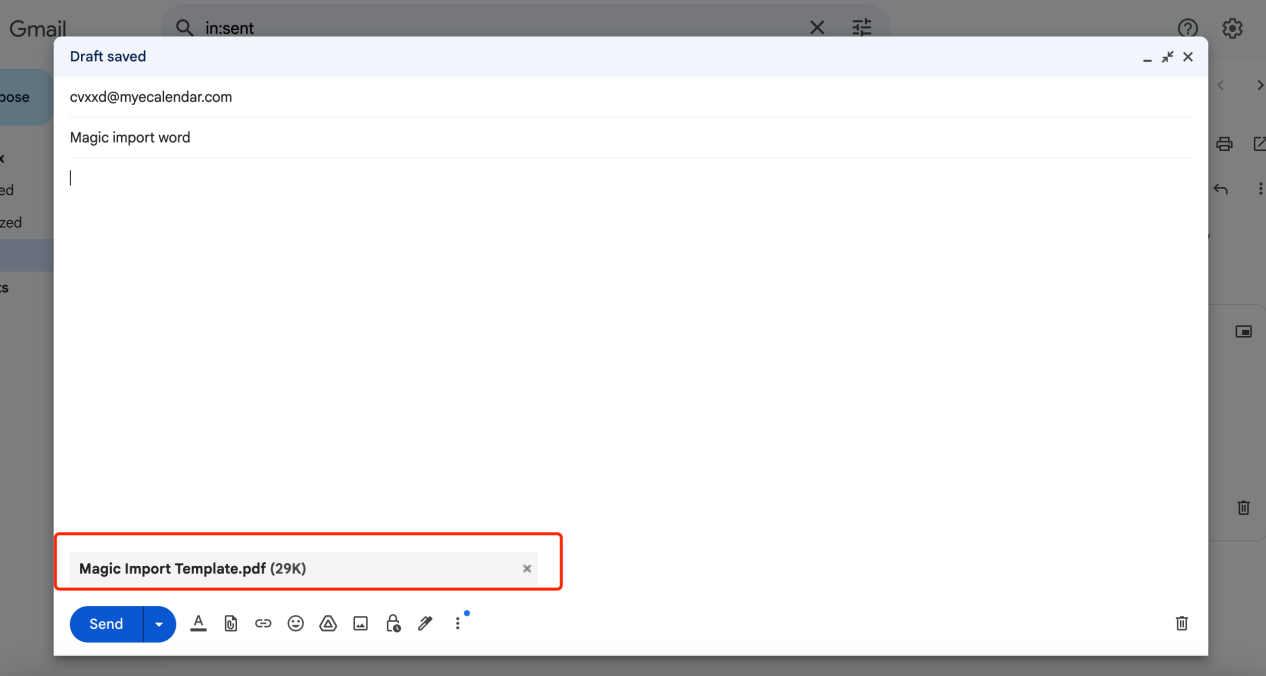
Send Successful Result:
You will receive an email confirmation when events are successfully added.
The added events will be reflected in the APP.
4. Excel Import Events
You can import events from Excel spreadsheets. Here's how:
Step Instructions:
- Recipient: Fill in the virtual device mailbox
- Subject: Enter the existing category name of the virtual device (defaults to 'Uncategorized' if not specified)
- Attachment: Select the saved Excel document
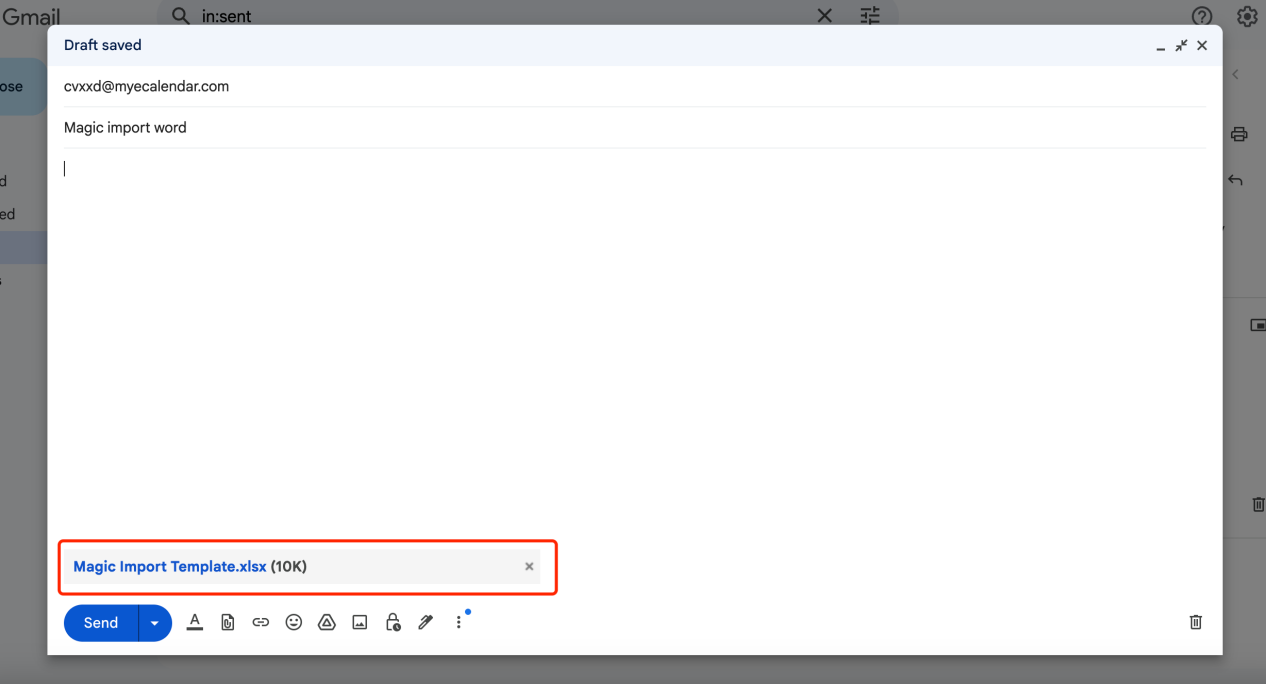
Send Successful Result:
You will receive an email confirmation when events are successfully added.
The added events will be reflected in the APP.
5. TXT Import Events
You can import events from TXT files. Here's how:
Step Instructions:
- Recipient: Fill in the virtual device mailbox
- Subject: Enter the existing category name of the virtual device (defaults to 'Uncategorized' if not specified)
- Attachment: Select the saved TXT document
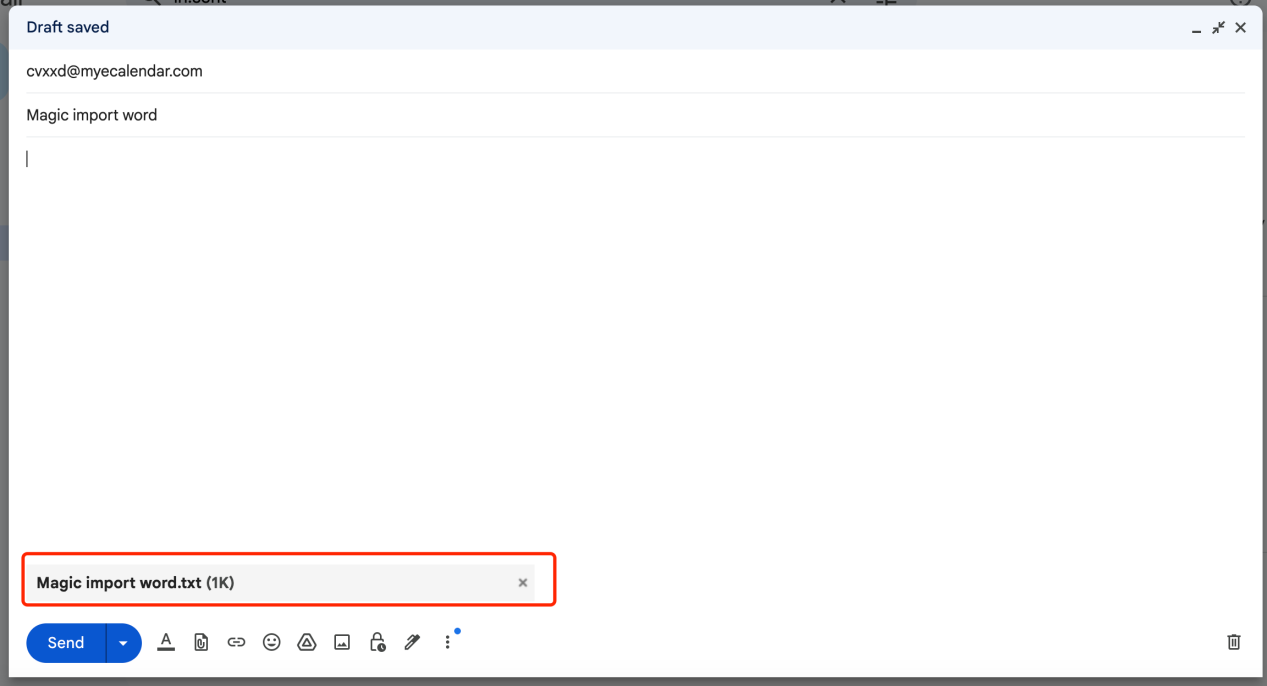
Send Successful Result:
You will receive an email confirmation when events are successfully added.
The added events will be reflected in the APP.
6. Magic Import Failure Scenario
Here are some common scenarios where Magic Import might fail:
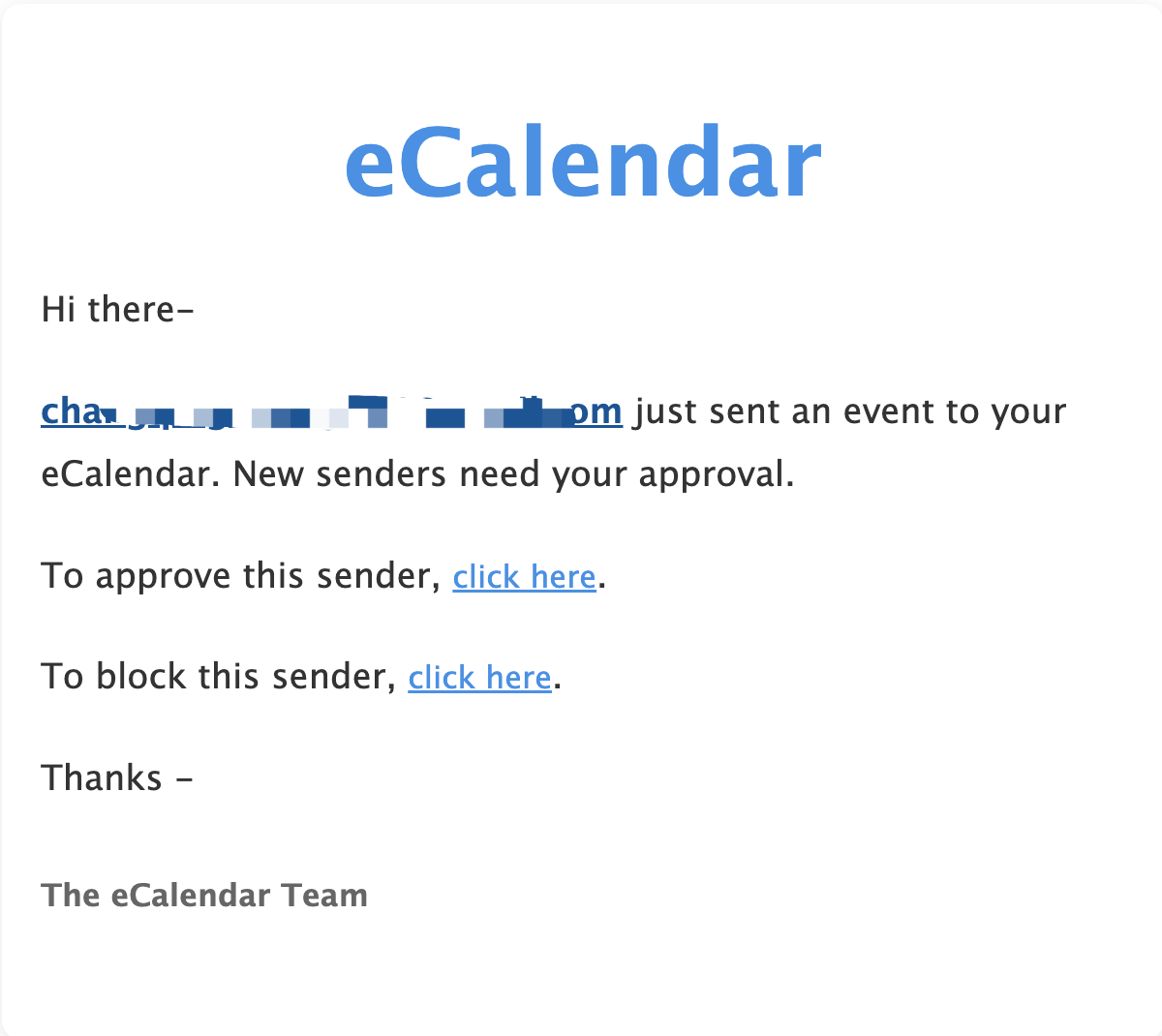
- The receiving device's email address is not a member
- The sending mailbox is not associated with the platform device
- Wrong email address (no email reminder; need to check by yourself)
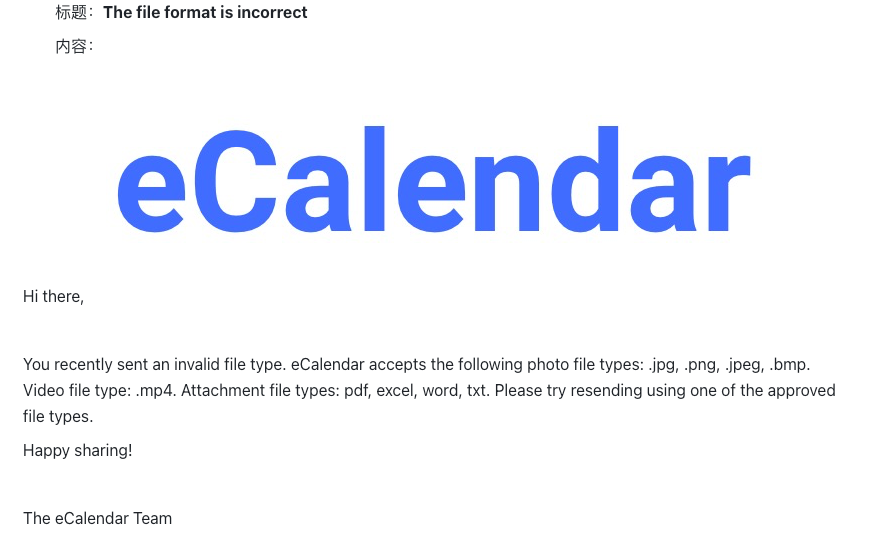
- Attachment format is not supported (must be PDF/Word/Excel/TXT format)
- Word/PDF/Excel documents contain images (images cannot be recognized)
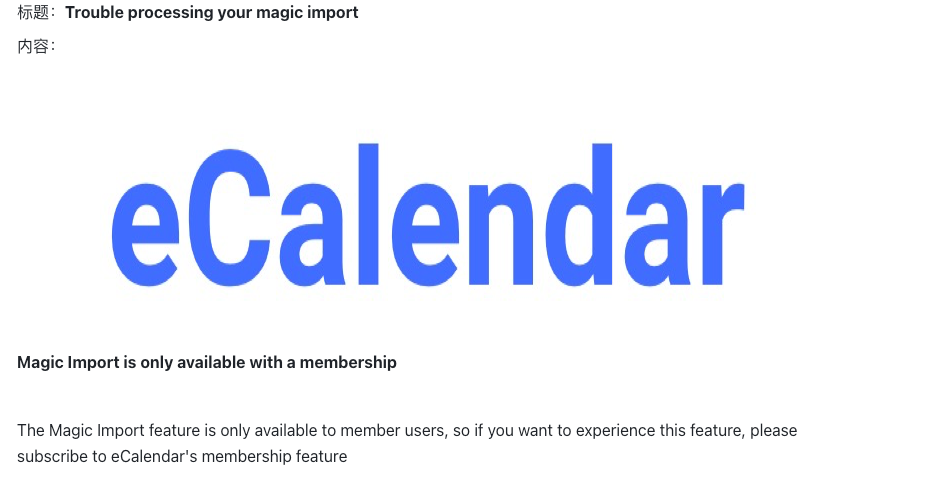

Privacy & Terms
Privacy Policy
GDPR Compliance Statement
Contact Us
Email:support@myecalendar.com


Download on the App Store


Get it on Google Play
深圳市福驾科技有限公司 @ 版权所有All rights reserved.粤ICP备18097481号-5